
Add a chatbot to WooCommerce: setup and product advice
A free plugin, five minutes and your product feed: how to add an AI chatbot to WooCommerce that recommends products and answers care and returns questions.
A WooCommerce chatbot has two jobs. It answers questions your pages already cover — delivery, returns, care — and it helps customers find the right product. This guide shows how to add one with a free plugin, how product recommendations work and how to test the tricky cases before customers find them.
Install the free plugin
There is a free QuatroChat plugin in the WordPress directory. You don’t need to touch your theme:
In your WordPress admin, go to Plugins → Add New Plugin and search for “QuatroChat”.
Click Install Now, then Activate.
Open QuatroChat in the admin menu and click Connect. Sign in or create a free account in the window that opens.
The chat now appears on every shop page, and QuatroChat starts reading your public pages into the knowledge base. The plugin survives theme updates, because nothing is inserted into the theme. Use either the plugin or a snippet, never both: two insertion points mean a duplicate chat.
Product recommendations from your feed
For product advice, add your Google Shopping XML feed in the QuatroChat panel under Products. Most WooCommerce product feed plugins create one; copy its address, which usually ends in .xml. The catalogue is read within minutes and refreshed every 6 hours.
When a customer writes “a gift for a runner, about €150”, the assistant searches the catalogue, recommends one or two products with the price and the reason, and shows them as cards that link to the product page. The cards are built from your feed, not written by the AI, so a product or a price cannot be invented.
| Customer says | What the assistant does |
|---|---|
| “Waterproof trail shoes, size 43, under €140” | Searches by meaning and words, applies the budget, shows matching products |
| “I need a jacket” | Asks one short question about use or budget |
| “Your cheapest running shoes in stock?” | Sorts by price and shows only products in stock |
| “What’s the difference between these two?” | Compares up to four products using the details in your feed |
| “Do you have it in black?” | Checks the variant; variants appear as one card with a “from” price |
Sale prices appear with the old price crossed out, products in stock come first, and “Show more” loads the next three without using an AI answer. Read more on the WooCommerce plugin page.
Test the tricky cases: variations and components
A washable dog bed has two parts. Its removable cover can go in the washing machine, while the insert needs spot cleaning. The product title says “washable”. That single word shows why you should test a chatbot with a product variation or component before rolling it out.
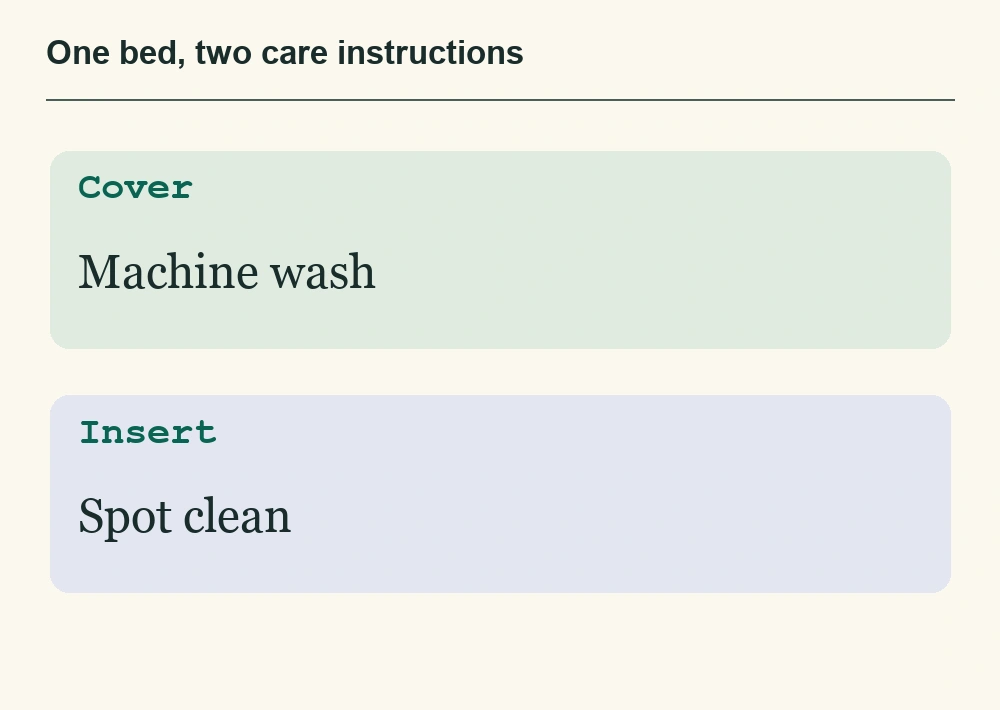
Add the product care page and returns policy to the knowledge base. If the difference exists only on a physical label, write both instructions into the care page and refresh the source. Then ask “Can I put the whole bed in the wash?” The answer should keep both instructions and point to the page where they can be checked.
| Starting point | What to try |
|---|---|
| Variation selected on mobile | Open and close the chat; the selection should stay intact. |
| Product care answer | Follow the source and find the instruction for both parts. |
| Return request for a used item | Ask for a person and check that the colleague sees which part was described. |
What to put in the knowledge base
The assistant reads your public shop pages automatically. Check that the pages customers ask about most actually contain the answers in plain text:
Shipping: costs, delivery times and countries, including the threshold for free delivery.
Returns: deadline, condition of the goods, who pays for the return and how refunds are made.
Payment: the methods you accept and whether invoices or instalments are possible.
Sizes and care: size charts as text, not only as images; care instructions per material.
Contact and opening hours: when a person is available in the chat.
Information that lives only in PDFs, such as a size guide or warranty terms, can be uploaded as a file. Short facts that are not on any page — “we don’t ship to Switzerland” — go into the FAQ section of the panel.
Choose how the AI and your team share the chat
| Mode | Who answers | Good for |
|---|---|---|
| Automatic | The AI answers every question, the team steps in when a person is requested | Shops with many repeated questions and a small team |
| Hybrid | The AI answers routine questions and hands unclear ones to the team itself | Shops where anything the pages don’t cover should go to a person |
| Only people | Your team only, no AI costs | Shops that want a classic live chat |
You can change the mode at any time in the panel, for example switching to Automatic before a sale weekend.
Measure the first month
After four weeks, look at three numbers in the panel: how many chats the AI handled without a person, which questions led to a handoff, and which products were recommended most. The handoffs are your to-do list: if many customers ask a person about delivery to Austria, the delivery page is missing a sentence. Fix the page, refresh the source, and the next customer gets the answer from the AI.
Keep the team in the loop
The AI has no access to WooCommerce orders or customer accounts. Questions about a specific order go to your team: the customer asks for a person, and a colleague continues in the same chat. Team members and their replies are free. When nobody is online, customers leave their email and get your reply there.
What it costs
The plugin and the live chat are free. AI answers use credits: 100 free after email verification, then €19 a month for 1,000 answers before VAT. A reply with product cards counts as one answer; “Show more” is free.
FAQ
Do I need a product feed?
Only for product recommendations. Without a feed, the assistant still answers delivery, returns and care questions from your shop pages.
Does the chatbot slow down my shop?
The chat script is small and loads asynchronously. The chat window loads only when a customer opens it.
Does it work with my theme?
Yes. The plugin adds the chat through the standard WordPress hooks, so it works with block themes, classic themes and page builders.
Can the AI see orders?
No. It answers from your public pages and your product feed. Order questions go to your team.
Can I use the plugin without WooCommerce?
Yes. The same plugin works on any WordPress site. Without a product feed, the assistant answers from your pages only.
Which feed format do I need?
A Google Shopping XML feed (RSS 2.0 or Atom), as most WooCommerce feed plugins create it. The address must be publicly reachable.
How current are prices and stock in the chat?
The feed is refreshed every 6 hours. Your product page stays the binding source, and each card links to it.